

Add an AI Chatbot to Your Wix Site
CustomerGPT adds an AI chatbot to a Wix website through Custom code in the Wix dashboard. You paste one script tag into Body - end on all pages, and the chat bubble answers visitors 24/7 from the pages and documents you trained it on.
Train it on your Wix pages, documents and FAQs before you install it. Then it answers visitors around the clock, collects contact details for your team, and lets you take over a chat when someone needs a person.
What CustomerGPT can do with Wix
Answers From Your Own Content
Crawl your Wix site from Knowledge Base and add documents and FAQs, so visitors get answers from your pages instead of generic AI replies.
Lead Capture in the Chat
With Sales Automation on, the chatbot asks your qualifying questions and collects names, emails and phone numbers for your team to follow up.
Your Name, Greeting and Color
Set the chatbot's name, welcome message and color in Customizer so the widget fits the look of your Wix site.
- Installs from Settings → Custom code in your Wix dashboard, with no app to add
- Shows a chat bubble in the bottom-right corner of every page
- Answers from your Wix pages, documents and FAQs once you train it on them
- Collects contact details during chats when Sales Automation is on
What you need before you start
A chatbot trained on your site
Create a chatbot in CustomerGPT and add your website as a knowledge source, so it answers from your own pages.
A Wix Premium plan and a connected domain
Wix adds custom code only to a published site with a connected domain, and connecting a domain needs a Premium plan.
The same domain in CustomerGPT
Enter your Wix site's connected domain as the Website Domain Link: the widget loads only on that domain and its subdomains.
How to add CustomerGPT to Wix
Copy your embed code
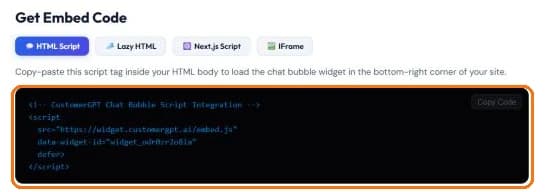
In the CustomerGPT dashboard, click your chatbot in My Chatbots to open Customizer. Scroll to Get Embed Code, keep the HTML Script tab and click Copy Code.
Open Custom code in Wix
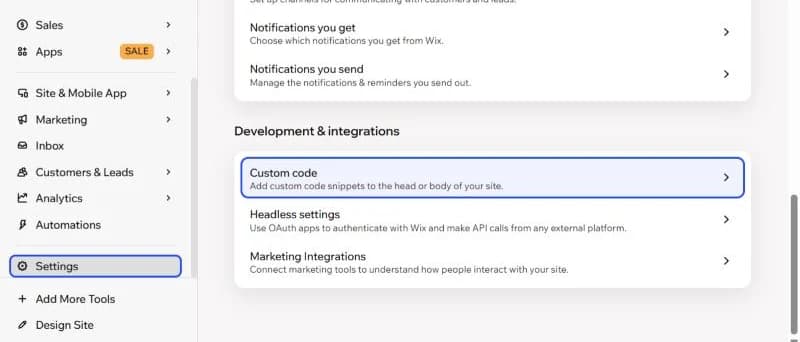
In your Wix dashboard, click Settings in the sidebar, scroll to Development & integrations and click Custom code.
Paste the embed code
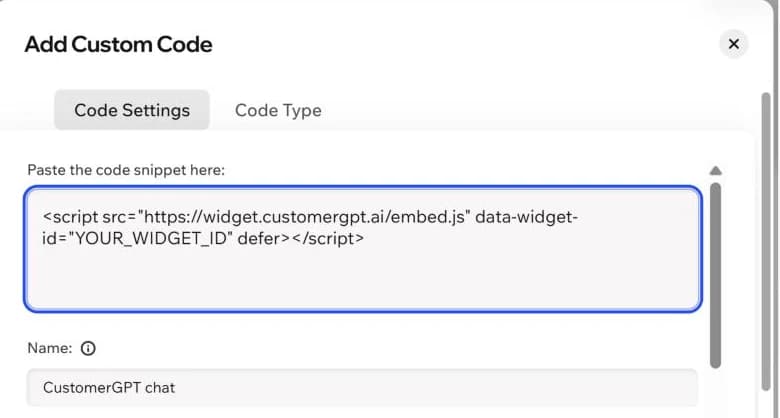
Click Add Custom Code, paste the embed code into the code box and give it a name, for example CustomerGPT chat.
Choose All pages and Body - end
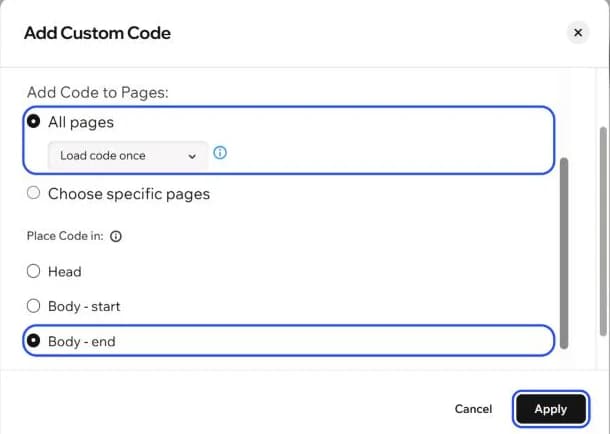
Under Add Code to Pages, keep All pages and Load code once. Under Place Code in, select Body - end, then click Apply.
Check your live site
Open your published site on its connected domain: the chat bubble appears in the bottom-right corner. It doesn't load in the Wix Editor preview, which runs on a different domain.
Good to know
Ideal for
Small businesses, service providers and online stores that run their website on Wix and want visitors answered after hours from their own pages.
Current limitations
- Custom code needs a Wix Premium plan and a connected domain, so the chatbot cannot run on a free wixsite.com address.
- Wix ties custom code to a domain: if you connect a different domain, Wix deletes the snippet, and the chatbot's Website Domain Link has to change too.
- The bubble sits in the bottom-right corner; its position can't be changed yet.


