

Wix runs custom code only on a published site with a connected domain, and connecting a domain needs a Wix Premium plan.
Add it to every page
- In your Wix dashboard, click Settings in the sidebar.
-
Scroll to Development & integrations and click Custom code.
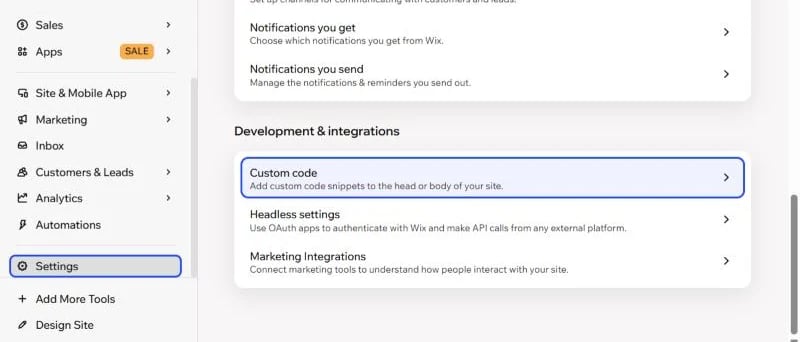
- Click + Add Custom Code.
-
Paste the embed code into Paste the code snippet here, and enter a Name, for example
CustomerGPT chat.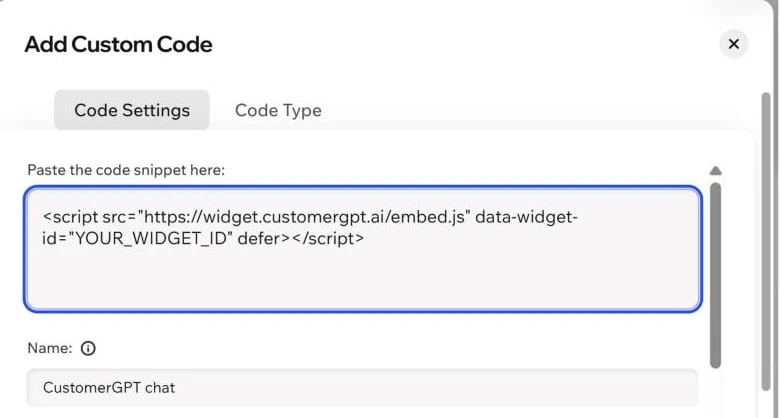
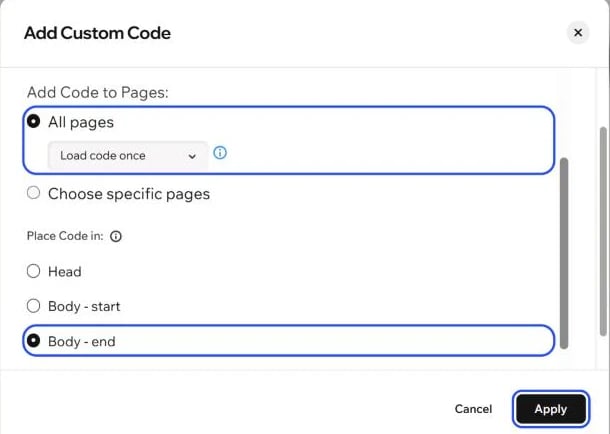
- Under Add Code to Pages, keep All pages and Load code once.
- Under Place Code in, select Body - end.
-
Click Apply.
Add it to one page only
In step 5, choose Choose specific pages instead of All pages, and pick the page.Your connected domain
The widget loads only on the domain you entered as Website Domain Link. Enter your Wix site’s connected domain there, the address your visitors see. See Where the widget is allowed to load. Wix keeps custom code per domain. If you connect a different domain to your site, Wix deletes your code snippets: add the embed code again, and change the chatbot’s domain to the new one.Train the chatbot on your Wix content
Crawl your site from Knowledge Base, as described in Add your website. Wix publishes a sitemap index at/sitemap.xml, and with the CLI you can train on the pages it lists, including those in the sitemaps it points to: