
Setup guide for CustomerGPT
CustomerGPT is an AI chatbot for your website, trained on your own content. Its HubSpot integration sends the leads your chatbot captures to HubSpot as contacts, which lets you:
- get every chat lead with a valid email into HubSpot CRM without copying it by hand;
- see the bot's qualification summary (lead status, the answers it collected and its reasoning) on the contact before you follow up;
- send each chatbot's leads to its own HubSpot account, for agencies and multi-brand teams.
Last updated November 8, 2026.
- Sync direction
- One-way, CustomerGPT to HubSpot
- HubSpot object
- Contacts (created or updated by email)
- Access requested
- crm.objects.contacts.write, oauth
- HubSpot plan
- Any, including free HubSpot CRM
- CustomerGPT plan
- Growth, Scale or Enterprise
- Setup time
- About 2 minutes
Before you start
- A CustomerGPT account on the Growth, Scale or Enterprise plan, with at least one chatbot. No account yet? Start a free trial on Growth.
- A HubSpot account on any plan, including free HubSpot CRM.
- Permission to install apps in that HubSpot account. Super admins have it by default.
Install the app
You install the app and connect your HubSpot account in one flow, started from the CustomerGPT dashboard.
Sign in to the CustomerGPT dashboard. In the chatbot selector at the top left, choose the chatbot whose leads should go to HubSpot.
Open Integrations in the left sidebar, find the HubSpot CRM card and click Connect Account.
HubSpot opens. Sign in if it asks you to, select the HubSpot account to connect and click Choose Account.
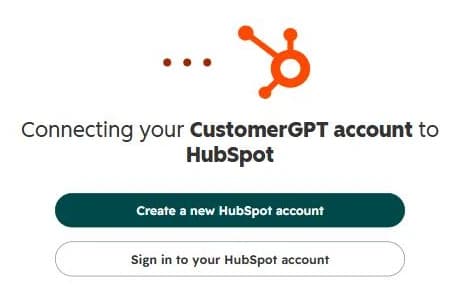
Not signed in to HubSpot yet? HubSpot asks you to sign in, or to create an account, before you choose one. Review the access CustomerGPT requests: permission to create and update contacts (
crm.objects.contacts.write) and HubSpot's basicoauthscope. CustomerGPT does not ask to read, export or delete contacts, or for access to any other records. Click Connect app.HubSpot returns you to Integrations in the dashboard. The HubSpot CRM card now shows Connected, with the portal ID and name of the connected account.
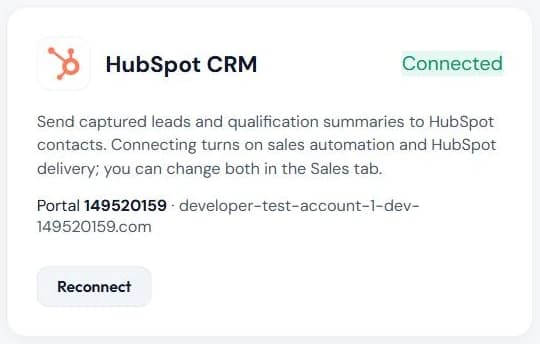
Integrations → HubSpot CRM after connecting: the portal the chatbot sends leads to, and Reconnect to change it.
Connecting also turns on sales automation and HubSpot sending for this chatbot, so new leads start reaching HubSpot right away. HubSpot deliveries that failed earlier are sent again.
To connect another chatbot, select it and repeat these steps. Each chatbot can use a different HubSpot account. If two chatbots share one, the card shows a warning.
Configure the app
Nothing has to be configured after connecting: sending to HubSpot is already on. To check it, or to change what the bot asks visitors:
With the same chatbot selected, open Sales Automation in the left sidebar. The heading reads Sales automation is on.
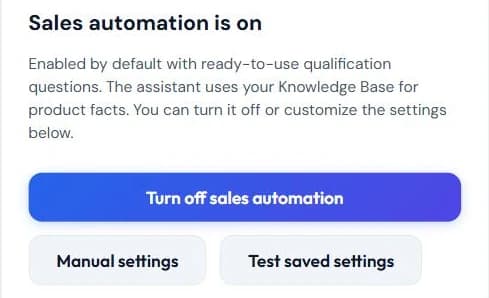
Sales Automation: connecting HubSpot turns it on. Manual settings opens the options below. Click Manual settings. Send contacts and qualification summaries to HubSpot is already checked.
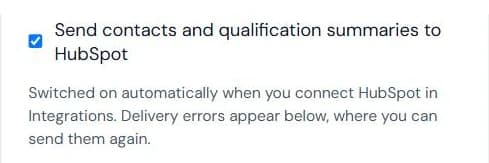
The HubSpot sending option under Manual settings. Uncheck it and save to stop sending, as in Disconnect the app. Under Qualification questions, edit what the bot asks visitors. By default it asks for company, use case, team size and timeline. Every answer goes into the contact's Message property; the answer stored under the key
companyalso fills Company.Click Save sales settings.
What CustomerGPT writes to HubSpot
The sync is one-way: CustomerGPT writes to HubSpot, and changes made in HubSpot are not sent back. Only contacts are written; deals, companies, tickets and chat transcripts are not created.
| HubSpot contact property | Value from CustomerGPT |
|---|---|
| The email the visitor gives in the chat. Contacts are matched on it. | |
| First name, Last name | The name the visitor gives, split at the first space. |
| Phone | The phone number, if the visitor gives one. |
| Company | The answer to the company qualification question. |
| Message | The lead status (for example, qualified), every answer the bot collected, its reasoning, and the CustomerGPT conversation ID. |
Properties the visitor did not provide are left unchanged. Values the bot collects overwrite the same properties on an existing contact, including Message.
Use the app
The integration works automatically; no manual actions are required.
- When a visitor shares a valid email in a chat, CustomerGPT creates a HubSpot contact with that email, or updates the contact that already has it. It does not create duplicates.
- Details the bot collects later in the same conversation, such as a phone number, an answer or a new lead status, update the same contact.
- The contact usually appears under Contacts in HubSpot within about a minute. The bot's summary is in its Message property.
- Chats in which the visitor never gives an email are not sent to HubSpot.
Track deliveries. In Sales Automation, Recent deliveries lists each send to HubSpot with its status. Failed deliveries are retried automatically. You can also send one again with Retry, or all of them with Retry all failed.
Test it. Open your chatbot, share a name and a test email, and answer a qualifying question. Then search for that email under Contacts in HubSpot.
Disconnect the app
Note: when you disconnect, CustomerGPT stops sending new leads from this chatbot to HubSpot. Contacts it already created or updated stay in HubSpot unchanged; nothing is deleted. Lead details remain in your CustomerGPT conversation history.
To stop a chatbot sending leads to HubSpot:
In the CustomerGPT dashboard, select the chatbot and open Sales Automation.
Click Manual settings and uncheck Send contacts and qualification summaries to HubSpot.
Click Save sales settings.
Other chatbots connected to HubSpot keep sending. Leads from this chatbot that were still waiting are not sent and show an error in Recent deliveries. To resume, check the box again and save.
To send a chatbot's leads to a different HubSpot account instead, click Reconnect on the HubSpot CRM card and choose the other account.
To remove CustomerGPT's access to your HubSpot account completely, uninstall the app.
Uninstall the app
Note: uninstalling revokes CustomerGPT's access to your HubSpot account immediately, for every chatbot connected to that account. Contacts CustomerGPT already created or updated stay in HubSpot unchanged; nothing is deleted. New leads stop reaching HubSpot.
In your HubSpot account, click the settings icon in the top navigation bar.
In the left sidebar, go to Integrations > Connected Apps.
Open CustomerGPT, choose Uninstall and confirm. HubSpot's guide to uninstalling an app shows each screen.
In the CustomerGPT dashboard, uncheck Send contacts and qualification summaries to HubSpot in Sales Automation for every chatbot that used this HubSpot account, as in Disconnect the app. Otherwise each new lead shows a revoked-connection error in Recent deliveries.
To connect again later, click Connect Account or Reconnect on the HubSpot CRM card in Integrations.
Troubleshooting
If a lead does not appear in HubSpot, check that the visitor gave a valid email, then open Recent deliveries in Sales Automation. Each failed delivery shows one of these errors:
| Error | What to do |
|---|---|
| Connect HubSpot in Integrations | The chatbot has no HubSpot connection. Follow Install the app for it. |
| A live HubSpot connection is required | The HubSpot CRM card shows Test mode: a placeholder, not a real HubSpot account. Click Connect Account and connect a real one. |
| Your 'hubspot' connection has expired or was revoked | The app was uninstalled in HubSpot or its access was revoked. Click Reconnect on the HubSpot CRM card. |
| HubSpot delivery disabled | Sending is unchecked in Sales Automation. Check it again and click Save sales settings. |
| HubSpot save HTTP … | HubSpot rejected the contact. The text after the colon is HubSpot's reason. |
Get help
Email [email protected] or use the contact form. Tell us the chatbot and, if you have it, the error from Recent deliveries.
For features, limits and FAQ, see the HubSpot integration overview.